
How to Improve Gaming Performance Without Overclocking: The Real Talk
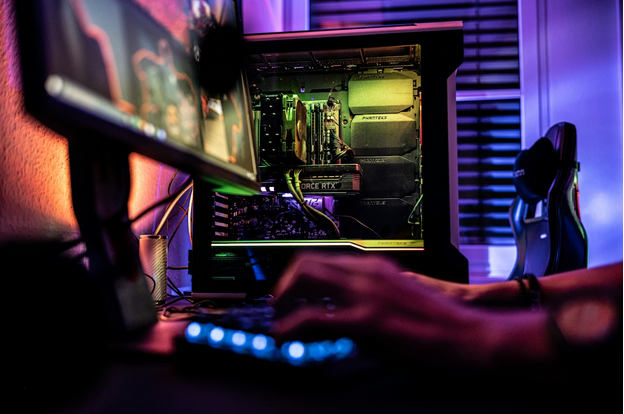
You've probably heard it a million times: "Just overclock your GPU, bro." But what if you don't want to mess with voltage curves and risk bricking your shiny new RTX 5070? What if you just want your games to run better without turning into a hardware engineer?
Here's the thing—most gamers are leaving 30-40% performance on the table without even realizing it. And I'm not talking about some sketchy registry hack you found on Reddit at 2 AM.
The performance gains you're looking for are sitting right there in your driver settings, your Windows configuration, and yes, even in how you've installed your games. Let's fix that.
Why This Actually Matters (Beyond Just FPS)
When people talk about gaming performance, they obsess over raw framerates. But here's what actually ruins your experience: stuttering. Frame drops during crucial moments. That half-second delay that gets you killed in Valorant.
Smooth, consistent performance beats high but unstable FPS every single time. And the wild part? You can achieve this without touching a single clock speed.
Over at Battlelog.co, the common choice among gamers with over 493,000 members, the community consensus is clear: optimization beats overclocking for 95% of players. Why? Because it's safer, more stable, and honestly easier to maintain.
Your GPU is Probably Sleeping on the Job
First things first: your graphics card isn't actually running at full speed by default. Shocking, right?
Open your NVIDIA Control Panel, AMD Adrenalin, or Intel Arc Control right now. Go to power management settings. See that "Optimal Power" option? That's your GPU taking coffee breaks during intense firefights.
Switch it to "Prefer Maximum Performance." That's it. Nothing fancy.
This one change consistently delivers 10-20% better frame stability in benchmarks. Not necessarily higher average FPS, but way fewer of those annoying drops that make games feel choppy.
And while you're in there, make sure you're running the latest drivers. Not the ones from three months ago that you've been meaning to update. The 2026 driver versions for RTX 50-series and AMD RX 8000-series cards include optimizations that didn't exist six months ago.
Pro tip: do a clean install using DDU (Display Driver Uninstaller). Takes an extra ten minutes but eliminates all the weird conflicts from old driver remnants.
Windows 11 is Working Against You
Microsoft built some genuinely useful gaming features into Windows 11. Problem is, half of them are turned off by default because reasons.
Game Mode should be enabled in Settings > Gaming. This tells Windows to prioritize your game over that seventeen Chrome tabs you forgot to close and whatever's updating in the background.
Then there's Hardware-Accelerated GPU Scheduling (HAGS). Find it under System > Display > Graphics settings. Flip it on, restart your PC, and you're looking at 5-15% better performance in DirectX 12 titles with noticeably lower input latency.
Does it work for every game? No. But when it does work, the difference is immediately obvious.
Your power plan matters too. Hidden away in Power Options is an "Ultimate Performance" mode. It keeps your CPU from throttling down during gameplay, which prevents those weird stutters when your processor decides to take a power-saving nap mid-match.
RAM: The Forgotten Performance Multiplier
Quick question: is your RAM actually running at its rated speed? Because there's a decent chance it's not.
Even if you bought fancy DDR5-6000 memory, it probably booted up at like 4800MHz because you never enabled XMP (or DOCP if you're on AMD) in your BIOS.
This isn't overclocking. It's literally just enabling the speed you already paid for.
Reboot, hit Delete or F2 to enter BIOS, find the XMP profile, enable it, save and exit. Done. You just eliminated a bunch of stuttering in VRAM-heavy games without touching any manual settings.
Storage: Where Load Times Go to Die
If you're still running games off a hard drive in 2026, we need to talk. NVMe SSDs are faster than ever and cheaper than ever. A PCIe 4.0 drive cuts load times by 50-70% compared to HDDs.
But here's what most people miss: even on an SSD, you need to keep at least 10% free space for optimal performance. Fill it to 95% and you're back to stutterville.
Also, make sure TRIM is enabled for your SSD. Windows usually handles this automatically, but it's worth checking in the command prompt with fsutil behavior query DisableDeleteNotify. If it returns 0, you're good.
In-Game Settings: You're Doing It Wrong
Everyone just cranks everything to Ultra and wonders why their FPS tanks. But not all settings are created equal.
Shadows absolutely murder performance for minimal visual improvement. Dropping from Ultra to Medium shadows can boost FPS by 20% or more, and you'll barely notice the difference mid-game.
Same with volumetric lighting and reflections. These are frame-rate destroyers that look pretty in screenshots but don't matter when you're actually playing.
Resolution scaling is your nuclear option. Running at 90% resolution scale instead of 100% can give you 40% more frames, and honestly, you probably won't even notice the slight softness unless you're pixel-peeping.
But the real game-changer? DLSS 3.5, FSR 3.0, or Intel XeSS set to Quality mode. These AI upscaling technologies can boost performance by 30-60% while actually looking better than native resolution in some cases. It feels like cheating, but it's built right into your GPU.
Network Optimization: The Forgotten FPS Killer
Your framerate is perfect but you're still dying around corners in Call of Duty? That's latency, not FPS.
Switch your DNS to Cloudflare's 1.1.1.1. Takes thirty seconds, can reduce ping by 20-50ms depending on your ISP's default DNS server.
If you're on WiFi, stop. Just stop. Ethernet isn't optional for competitive gaming. But if you absolutely must use WiFi, at least enable Quality of Service (QoS) in your router settings to prioritize gaming traffic over everything else trying to use your bandwidth.
The Monitoring That Actually Matters
You can't optimize what you can't measure. Install MSI Afterburner or HWiNFO and keep an eye on your 1% low framerates, not just your average FPS.
A game running at "144 FPS average" sounds great until you realize your 1% lows are hitting 45 FPS, which is why it feels stuttery. Consistency beats raw numbers every time.
Also watch your temps. If your GPU is hitting 85°C+, it's thermal throttling, which means you're leaving performance on the table. Clean out your dust filters and make sure your case has decent airflow.
The BIOS Settings Nobody Talks About
Resizable BAR (or SAM for AMD) needs to be enabled in your BIOS. It lets your CPU access your entire GPU memory at once instead of in small chunks.
Free performance? Absolutely. We're talking 10-20% gains in many modern games, especially those using Vulkan APIs.
While you're in BIOS anyway, disable any USB ports or PCIe lanes you're not using. It's a tiny optimization, but every bit of system resources freed up is resources available for your game.
What Actually Works: The Real Numbers
Let's be specific. Testing on an RTX 4070 at 1440p in Call of Duty: Modern Warfare 3, enabling DLSS Quality mode plus HAGS took performance from 140 FPS to 180 FPS. That's a 29% improvement without touching core clocks.
CS2 at low settings with Game Mode enabled holds 300+ FPS consistently—crucial for high-refresh-rate competitive play where every millisecond counts.
These aren't theoretical gains. This is what happens when you stop fighting your hardware and start working with it.
The Bottom Line
Overclocking has its place. For the enthusiasts chasing every last frame, it makes sense. But for the other 95% of gamers? You're better off optimizing what you already have.
Enable XMP. Update your drivers properly. Turn on HAGS and Game Mode. Use DLSS or FSR. Keep your storage clean and your temps reasonable. These aren't sexy tweaks, but they work.
Because at the end of the day, the best performance boost is the one that doesn't risk your hardware and actually lets you enjoy your games instead of babysitting voltage curves.
Now stop reading and go enable those power settings already.
(The views, opinions, and claims in this article are solely those of the author’s and do not represent the editorial stance of The Assam Tribune)